
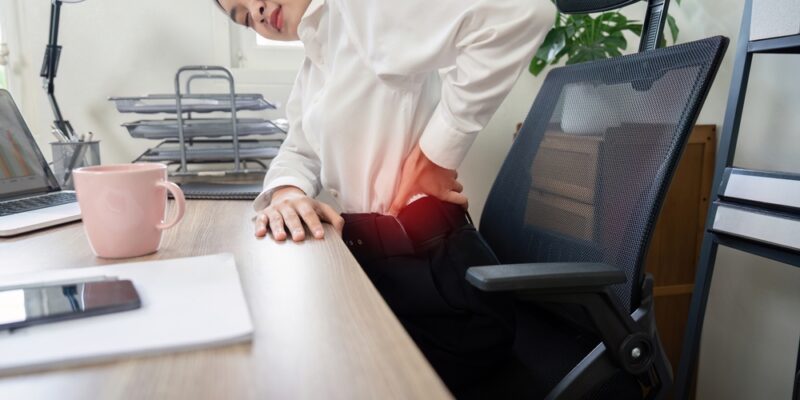
Your work environment plays a bigger role in your spinal health than you might think. Hours spent at a desk with poor posture or an ill-fitting chair can lead to chronic back pain, neck strain, and long-term spinal issues. Whether you work in an office or from home, creating an ergonomic workspace can protect your spine, improve comfort, and boost productivity. In this guide, we’ll explore how to set up your chair, desk, monitor, and other tools to support proper posture and keep your spine healthy throughout the workday.
In This Blog:
- Understanding the Impact of Ergonomics on Spine Health
- Choosing the Right Chair
- Desk and Monitor Setup
- Keyboard and Mouse Positioning
- Incorporating Movement into Your Workday
- Foot Positioning and Floor Support
- Lighting and Eye Level Considerations
- Additional Ergonomic Tools to Consider
Understanding the Impact of Ergonomics on Spine Health
Ergonomics is the science of designing workspaces to fit the human body, reducing strain and promoting healthy posture. When your workstation is poorly set up your spine bears the brunt of the misalignment. Over time, this can lead to muscle fatigue, stiffness, herniated discs, and chronic back pain.
An ergonomic setup keeps your spine in a neutral position, with your ears, shoulders, and hips aligned. This reduces pressure on your vertebrae and discs, allowing your muscles to work efficiently without overcompensation. In short, ergonomics isn’t just about comfort, it’s a preventative strategy for long-term spinal health.
Choosing the Right Chair
Your chair is the foundation of an ergonomic workspace, and it plays a crucial role in supporting your spine throughout the day. Look for a chair with adjustable height, so your feet can rest flat on the floor and your knees are at a 90-degree angle. Lumbar support is essential, as it helps maintain the natural curve in your lower back, preventing slouching that can strain spinal discs.
Adjustable armrests are another key feature, allowing you to keep your elbows close to your body and your shoulders relaxed. Seat depth matters too. There should be a gap of about two to three inches between the edge of the seat and the back of your knees to promote circulation. When possible, opt for a chair with breathable material and cushioning that supports prolonged sitting without causing discomfort.
Desk and Monitor Setup
Your desk height directly affects your posture. Ideally, your desk should allow your elbows to rest at about a 90-degree angle when typing, with your wrists straight and shoulders relaxed. A desk that’s too high can cause you to shrug your shoulders, while one that’s too low can make you hunch forward, both of which strain your spine.
Monitor placement is equally important. The top of your screen should be at or just below eye level, and the monitor should be about an arm’s length away from you. This helps you maintain a neutral neck position and prevents forward head posture, which can lead to upper back and neck pain. If you use dual monitors, position them side-by-side with minimal turning of the head, or place your primary monitor directly in front of you to reduce spinal twisting.
Keyboard and Mouse Positioning
Your keyboard and mouse should be positioned so that your elbows remain close to your body and your forearms are parallel to the floor. Keep your wrists in a straight, neutral position and avoid bending them up, down, or to the sides for extended periods.
Ergonomic keyboards, which split the keys to match the natural angle of your hands, and vertical mice, which encourage a handshake-like wrist position, can reduce strain on your shoulders, neck, and upper back. Position your mouse close to your keyboard to avoid overreaching, which can pull your shoulders forward and disrupt spinal alignment.
Incorporating Movement into Your Workday
Even the most well-designed ergonomic setup can’t fully protect your spine if you stay in one position for too long. Prolonged sitting compresses the discs in your lower back and reduces circulation, which can lead to stiffness and discomfort. To counter this, aim to stand, stretch, or walk for at least 1–2 minutes every 30–60 minutes.
Simple movements such as shoulder rolls, gentle neck stretches, or standing side bends can relieve muscle tension. If possible, consider a sit-stand desk so you can alternate between sitting and standing throughout the day. This not only helps your spine but also improves energy levels and focus.
Foot Positioning and Floor Support
Proper foot placement is often overlooked but plays a major role in spinal alignment. Keep both feet flat on the floor, with your knees at a 90-degree angle. Avoid crossing your legs for extended periods, as this can tilt your pelvis and place uneven pressure on your spine.
If your chair height prevents your feet from resting flat, use a footrest to provide stable support. A cushioned or angled footrest can also help improve circulation and reduce lower back strain. For those who stand while working, an anti-fatigue mat can ease pressure on the spine and lower limbs.
Lighting and Eye Level Considerations
Poor lighting can cause you to lean forward or crane your neck, unknowingly straining your spine. Position your workspace so natural light comes from the side rather than directly in front or behind you to avoid glare. If natural light isn’t available, use adjustable desk lamps to brighten your work area without forcing you to hunch over your tasks.
Eye level also plays a critical role in posture. Keep your monitor centered in front of you, with the top of the screen at or just below your natural eye line. If you find yourself tilting your head up or down, adjust your monitor height with a stand, riser, or even a few sturdy books. Maintaining a neutral neck position prevents unnecessary tension in your upper spine.
Additional Ergonomic Tools to Consider
Beyond the basics of chairs, desks, and monitors, there are additional tools that can make your workspace even more spine-friendly. Lumbar support cushions can provide extra lower back comfort, especially if your chair lacks built-in support. Seat cushions with memory foam or gel can help distribute your weight evenly and reduce pressure on the tailbone.
Monitor risers and adjustable laptop stands can fine-tune screen height, while document holders placed at eye level can prevent repetitive neck bending. For those spending long hours on the computer, blue light–blocking glasses can help reduce eye strain, which indirectly encourages better posture.
Conclusion
Creating an ergonomic work environment isn’t just about comfort, it’s an investment in your long-term spinal health. The right chair, desk setup, and posture-friendly tools can help you avoid back pain, reduce strain, and maintain healthy spinal alignment throughout your career. By incorporating movement breaks, maintaining proper foot and monitor positioning, and adjusting your lighting, you can transform your workspace into a supportive environment for your spine. Small changes today can make a big difference in preventing chronic discomfort tomorrow.
If you’ve been experiencing back pain, neck stiffness, or posture-related fatigue, now is the time to take action. At Comprehensive Spine Care, we can assess your spinal health and provide personalized ergonomic recommendations to keep you feeling your best. Schedule your consultation today and take the first step toward a healthier, more comfortable workday.